Edit Alerts Window
The Edit Alerts window is used to define settings for the alert messages that display on the Alerts window. Multiple methods can be used to notify users when an alert is received, such as an audio tone or a flashing icon. Additionally, alerts can be deactivated to prevent them from displaying on the Alerts window.

|
To access the Edit Alerts window, click the |
 (Alerts) icon and then click the
  (Configure) icon on the Alerts window.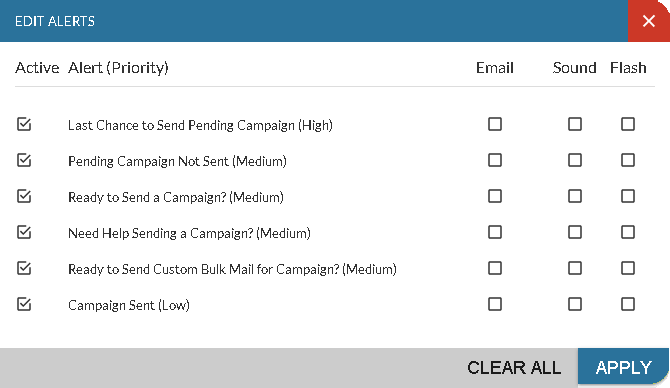
To activate an alert, select the corresponding check box in the Active column. Once an alert has been activated, the check boxes in the Email column, the Sound column, and the Flash column can be used to customize how a user is notified about the corresponding alert. If an alert is active but the check boxes in these columns are not selected, the alert can still be viewed on the Alerts window. Once alert settings have been updated, click the APPLY button to save the alert settings.
The following columns are available on the Edit Alerts window.
Active: Select this check box to activate the corresponding alert. This check box is automatically selected for all users for each alert.
Alert (Priority): The name of the alert and the alert priority, such as High or Medium, display. Alert priority determines the icon that displays next to an alert, the order in which alerts display on the Alerts window, and how the alert displays when it is received.
Email: Select this check box to receive an Email message when the alert is received.
Sound: Select this check box to play an audio tone when the alert is received. The XtreamService application must be open to receive audio alerts.
Flash: Select this check box to display a flashing indicator when the alert is received. When an alert is set up to display a flashing indicator, the  (Alerts) icon flashes to indicate the alert was received. If the alert was sent when the user was not logged on to the XtreamService application, the (Alerts) icon flashes when the user logs on.
Click here for a list of products that may be mentioned in this help file.